一筆書きアプリのおさらい
「index.html」ファイルをWebブラウザで実行すると、以下の図のように、4つのサンプルコードが1つのセットとなり、お絵描きをすることができます。この4つが今回の連載のテンプレートとなります。
詳しくは、前回の連載で似たものを作ったので参考にしてください。今回はブラウザの幅に合わせてパソコン版が「pc.css」のスタイルシートを、モバイル版が「pc.css」と「mobile.css」のスタイルシートを適用します。
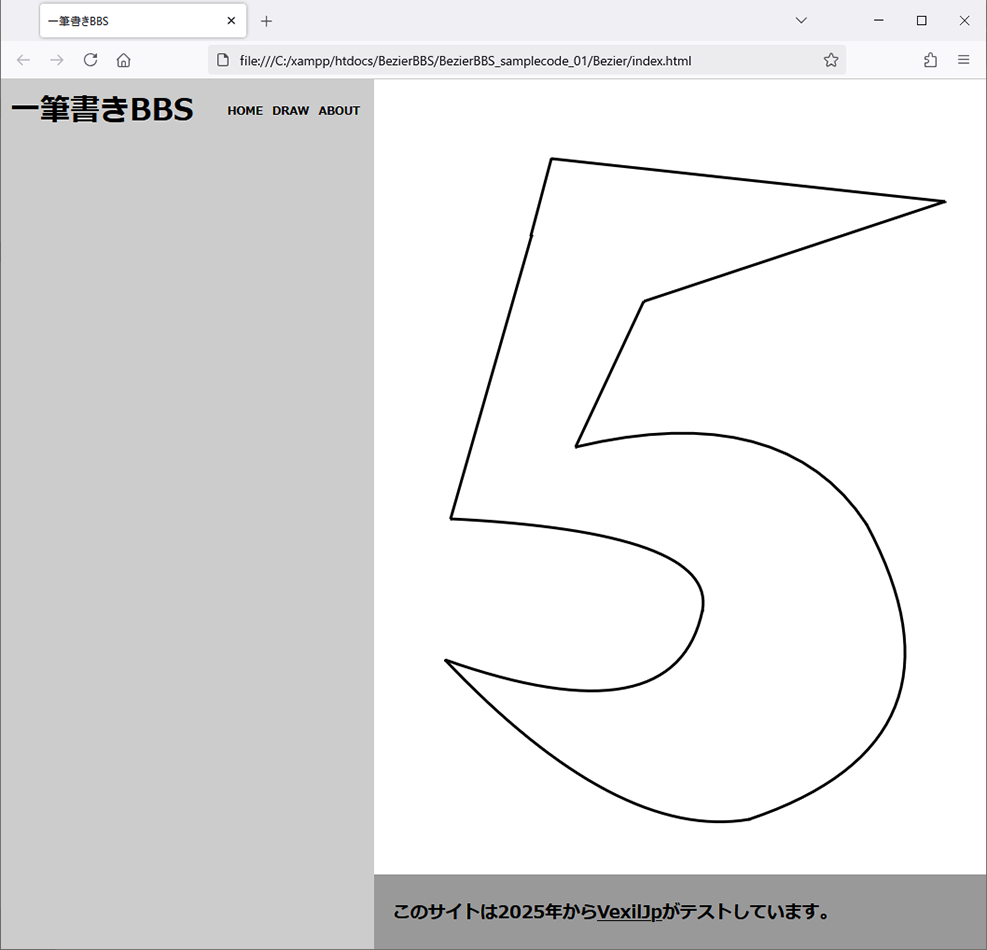
「.html」ファイルは、タグを配置するHTML5文書です。タイトルの<h1>タグ、メニューの<nav>タグ、絵を描ける<canvas>タグ、作者情報の<footer>タグを配置します。
「index.html」のサンプルコード
<!DOCTYPE html>
<html lang="ja">
<head>
  <meta charset="UTF-8">
  <title>一筆書きBBS</title>
  <link href="css/pc.css" rel="stylesheet" type="text/css" />
  <link href="css/mobile.css" rel="stylesheet" type="text/css" media="only screen and (max-width:1023px)" />
  <script type="text/javascript" src="js/main.js"></script>
</head>
<body>

<div id="left">
  <header>
    <h1>一筆書きBBS</h1>
    <nav>
      <a href="?page=home">HOME</a>
      <a href="?page=draw">DRAW</a>
      <a href="?page=about">ABOUT</a>
    </nav>
  </header>
</div>
<div id="right">
  <canvas width="760" height="500"></canvas>
  <footer>
    <h3>このサイトは2025年から<a href="http://vexil.jp" target="_blank">VexilJp</a>がテストしています。</h3>
  </footer>
</div>

</body>
</html>
「.css」ファイルが装飾のスタイルシートです。パソコン版では、左側にタイトルとメニューが配置されており、右上に絵を描くことができます。右下には、このサイトの作者についてを書けるようになっています。
「css」→「pc.css」のサンプルコード
html,
body {
  font-family:Meiryo,"Hiragino Kaku Gothic Pro";
  min-height: 100%;
  height: 100%;
  margin: 0;
  padding: 0;
  position: relative;
  background-color: #999;
}
header {
  overflow:hidden;
  width: 100%;
  margin: 0;
  padding: 0;
}
h1 {
  float: left;
  padding: 0;
  margin: 10px 0 0 0;
}
h2 {
  clear: both;
}
h3 {
  margin: 0 0 0 20px;
  padding: 20px 0;
}
nav {
  float: right;
  text-align: center;
}
footer {
  float: left;
  margin: 0;
  padding: 0;
}
input,
textarea {
  width: calc(100% - 20px);
  padding: 0;
  margin: 5px 10px;
}
button {
  width: 200px;
  padding: 0;
  margin: 5px 10px;
}
input[type="submit"] {
  width: 200px;
}
select {
  margin: 10px 0 0 0;
}
#select {
  margin: 20px;
}
#select_num {
  color: #fff;
  background-color: #000;
}
canvas {
  background-color: #fff;
  z-index: 0;
}
ul {
  clear: both;
}
li {
  width: 100%;
  padding: 5px 0;
}
#left {
  float: left;
  margin: 0;
  padding: 0 10px;
  width: 380px;
  min-height: 100%;
  background-color: #ccc;
}
#right {
  float: right;
  width: calc(100% - 400px);
  min-height: 100%;
  background-color: #999;
}
a {
  color: #000;
  text-decoration: underline;
}
a:hover {
  color: #fff;
  background-color: #000;
  text-decoration: none;
}
nav a {
  float: left;
  margin: 0;
  padding: 25px 5px 20px 5px;
  font-size: 12px;
  text-decoration: none;
  font-weight: bold;
}
モバイル版のスタイルシートは、上にタイトルとメニューを配置し、上下の真ん中に絵を描くことができるようになっています。下には、このサイトの作者について書けるように配置されています。
「css」→「mobile.css」のサンプルコード
h1 {
  font-size: 50px;
}
h2 {
  font-size: 40px;
}
h3 {
  font-size: 35px;
}
li {
  font-size: 30px;
}
#left {
  clear: both;
  margin: 0;
  padding: 0 10px;
  width: 100%;
  min-height: 50%;
  background-color: #ccc;
}
#right {
  clear: both;
  width: 100%;
  min-height: 50%;
  background-color: #999;
}
a {
  font-size: 36px;
}
nav a {
  float: left;
  margin: 0;
  padding: 30px 10px;
  font-size: 30px;
  text-decoration: none;
  font-weight: bold;
}
「.js」ファイルがHTML5やCSSを制御するプログラミング言語です。<canvas>タグに2D画像をお絵描きして描画します。マウスホイールで絵を描いた過程をアンドゥ・リドゥできます。
「js」→「main.js」のサンプルコード
// 変数
let _canvas;
let _context;
let _click = false;
let _pos = [];
let _current = 0;
// 全てのDOMが読み込み完了したら
window.addEventListener("DOMContentLoaded", () => {
  _canvas = document.querySelector('canvas');
  if (_canvas == null) return;
  _context = _canvas.getContext('2d');
  window.addEventListener("resize", resize, false);
  resize();
  // マウスがクリックされたら頂点描画
  _canvas.addEventListener("mousedown", (e) => {
    _click = true;
    _pos.length = _current*4;
    let pos = getPos(e);
    _pos.push(pos[0],pos[1],pos[0],pos[1]);
    _current++;
    line();
  });
  // マウスが離されたら
  window.addEventListener("mouseup", (e) => { _click = false; });
  // マウスがドラッグされたら
  window.addEventListener("mousemove", (e) => {
    if ( _click ) {
      let pos = getPos(e);
      _pos[_pos.length-4] = pos[0];
      _pos[_pos.length-3] = pos[1];
      line();
    }
  });
  // マウスホイールでアンドゥとリドゥ
  _canvas.addEventListener('wheel', (e) => {
    if (e.deltaY > 0) {
      if (_current > 0) _current--;
    } else if (e.deltaY < 0) {
      if (_current < _pos.length/4) _current++;
    }
    line();
  });
});
// 画面サイズが変更されたら
function resize() {
  if ( document.body.clientWidth <= 1023 ) {
    _canvas.width = window.innerWidth;
  } else {
    _canvas.width = document.body.clientWidth - 400;
  }
  _canvas.height = document.body.clientHeight - 80;
  line();
}
// 図形の描画
function line() {
  _context.clearRect(0,0,_canvas.width,_canvas.height);
  let color = 'rgb(0,0,0)';
  _context.strokeStyle = color;
  _context.lineWidth = 1;
  // 1クリックした頂点
  for ( let i = 0; i < _current; i++ ) _context.strokeRect(_pos[i*4+2],_pos[i*4+3],1,1);
  // ベジェ曲線を引いていく
  _context.lineWidth = 3;
  _context.beginPath();
  for ( let i = 1; i < _current; i++ ) {
    _context.moveTo(_pos[i*4-2],_pos[i*4-1]);
    _context.quadraticCurveTo(_pos[i*4],_pos[i*4+1],_pos[i*4+2],_pos[i*4+3]);
  }
  _context.stroke();
}
// 正確なcanvasのマウス座標
function getPos(event) {
  // 要素の位置を取得
  let clientRect = _canvas.getBoundingClientRect();
  let positionX = event.clientX - clientRect.left;
  let positionY = event.clientY - clientRect.top;

  return [positionX,positionY];
}