


ダウンロード サンプルファイル (56.5 KB)
Microsoft Kinect for Windowsは物体までの距離を計測できるセンサーで、その戻り値はグレースケール相当の2バイトの画像として取得できます。この距離データを可視化するときにデータを見やすくするのに画像処理する場合が多いのですが、1ドットずつ処理していると処理時間がかかりすぎるため、フレームレートの低下を招き、距離データの再生にタイムラグが生じてしまいます。この画像処理の処理速度を向上させるという問題をどのようにすれば解決できるのか悩んでいた時に思いついたのが、今回取り上げるLEADTOOLS Imaging Proの存在です。
LEADTOOLSは高速な多機能画像処理コンポーネントですが、それゆえに画像ファイルに対する処理にのみ適用するようなイメージがあります。しかし、Kinectからのデータは連続した画像データとして取得できます。つまり、動画のように見えていても、処理単位は画像データとなるため、LEADTOOLSが適用できるのではないかと考えました。
結論から言えば、非常に良い結果を得ることができました。
Kinect距離データを画面に表示する
(※サンプルファイルの「CZ1312HistogramVB」に対応)
Kinectからの距離データを、WPFのImageコントロールに表示するサンプルを作成します。
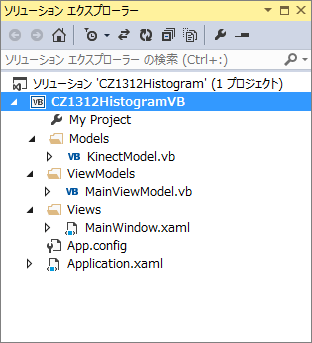
KinectModel.vb
KinectModelクラスには、Kinectからの距離データをImageSourceとして公開する処理を記述します。
重要な部分を抜粋すると次のようになります。
        :
    (略)
        :
Private WithEvents Kinect As KinectSensor

Private _DepthImageElement As ImageSource
Public Property DepthImageElement As ImageSource
    Get
        Return Me._DepthImageElement
    End Get
    Set(value As ImageSource)
        Me._DepthImageElement = value
        OnPropertyChanged()
    End Set
End Property
        :
    (略)
        :
Private Sub DiscoverKinectSensor()
    Me.Kinect = KinectSensor.KinectSensors.FirstOrDefault(
        Function(x)
            Return x.Status = KinectStatus.Connected
        End Function)
    If Me.Kinect IsNot Nothing Then
        Me.Kinect.DepthStream.Enable()
        Me.Kinect.Start()
        Me.DepthImageBitmap = New WriteableBitmap(DepthDesc.Width,
                                                  DepthDesc.Height,
                                                  96.0,
                                                  96.0,
                                                  PixelFormats.Gray16,
                                                  Nothing)
        ReDim Me.DepthImageFrameData(depthDesc.Width * depthDesc.Height - 1)
        Me.DepthImageBitmapRect = New Int32Rect(0,
                                                0,
                                                DepthDesc.Width,
                                                DepthDesc.Height)
        Me.DepthImageStride = DepthDesc.Width * Me.BytesPerPixel
    End If
End Sub

Private Sub Kinect_DepthFrameReady(sender As Object,
                                   e As DepthImageFrameReadyEventArgs) _
                               Handles Kinect.DepthFrameReady
    Using frame = e.OpenDepthImageFrame
        If frame IsNot Nothing Then
            frame.CopyPixelDataTo(Me.DepthImageFrameData)

            Me.DepthImageBitmap.WritePixels(Me.DepthImageBitmapRect,
                                            Me.DepthImageFrameData,
                                            Me.DepthImageStride,
                                            0)
            Me.DepthImageElement = Me.DepthImageBitmap
        End If
    End Using
End Sub
重要なポイントは、距離データがセンサーから送られてくるとイベント呼び出しされるKinect_DepthFrameReadyイベントプロシージャで、この中で次の処理を実施しています。
- OpenDepthImageFrameメソッドでフレーム形式の距離データを取得
- CopyPixelDataToメソッドで2バイト配列に格納
- WritePixelsメソッドで2バイト配列をグレースケールのWritebleBitmapに設定
- WritebleBitmapをImageSourceとして公開
MainViewModel.vb
MainViewModelクラスでは、KinectModelが公開しているDepthImageElementプロパティとPropertyChangedイベントを公開しています。
MainWindow.xaml
<Window
    x:Class="MainWindow"
    Title="CZ1312HistogramVB"
    Height="300" Width="640"
    xmlns="http://schemas.microsoft.com/winfx/2006/xaml/presentation"
    xmlns:x="http://schemas.microsoft.com/winfx/2006/xaml"
    xmlns:d="http://schemas.microsoft.com/expression/blend/2008"
    xmlns:local="clr-namespace:CZ1312HistogramVB"
    Loaded="WIndow_Loaded" Closing="Window_Closing">
    <Viewbox>
        <Grid>
            <Grid.ColumnDefinitions>
                <ColumnDefinition Width="1*" />
                <ColumnDefinition Width="1*" />
            </Grid.ColumnDefinitions>
            <Image Grid.Column="0" Grid.Row="0"
                        Source="{Binding DepthImageElement}"  Width="640" Height="480" />
            <Image Grid.Column="1" Grid.Row="0"
                        Source="{Binding DepthImageElement}"  Width="640" Height="480" />
        </Grid>
    </Viewbox>
</Window>
WPFの画面定義体であるXAMLで画面を左右に2分割し、同じデータを表示するようにします。あとで一方をLEADTOOLSで見やすくします。
MainWindow.xaml.vb
Class MainWindow
    Private ViewModel As New MainViewModel

    Public Sub New()
        InitializeComponent()
        Me.DataContext = Me.ViewModel
    End Sub

    Private Sub WIndow_Loaded(sender As Object, e As RoutedEventArgs)
        Me.ViewModel.StartCommand()
    End Sub

    Private Sub Window_Closing(sender As Object, e As ComponentModel.CancelEventArgs)
        Me.ViewModel.StopCommand()
    End Sub
End Class
データの表示などはXAMLのBindingを使うので、コードビハインド側ではDataContextの設定と、Kinectセンサーの開始と停止のメソッド起動の記述だけで済みます。
実行結果

距離に応じて手前が濃く、奥が薄いグレースケールで表示できていると思います。いろいろ動いてその変化を確認してみましょう。
この記事は参考になりましたか?
- 現役エンジニア直伝! 「現場」で使えるコンポーネント活用術(LEADTOOLS)連載記事一覧
-
- スマホの画像をOneDriveにアップして共有・編集するWPFアプリを作る
- 「LEADTOOLS」を使ってWindowsストアアプリに画像処理機能を実装しよう
- 「LEADTOOLS」を使ってKinectから取得した距離データを可視化しよう
- この記事の著者
-

初音玲(ハツネアキラ)
国内SIerのSEでパッケージ製品開発を主に行っており、最近は、空間認識や音声認識などを応用した製品を手掛けています。 個人的には、仕事の内容をさらに拡張したHoloLensなどのMRを中心に活動しています。 Microsoft MVP for Windows Development ブログ:http://hatsune.hatenablog.jp/
※プロフィールは、執筆時点、または直近の記事の寄稿時点での内容です

この記事は参考になりましたか?
この記事をシェア